> For the complete documentation index, see [llms.txt](https://docs.nedyx.com/llms.txt). Markdown versions of documentation pages are available by appending `.md` to page URLs; this page is available as [Markdown](https://docs.nedyx.com/version-1.66/nedyx/working-with-nedyx/widgets/widget-types.md).
# Widget types
There are different types and subtypes of widgets.
#### Table widget
Table widgets display their content in several cells. The following subtypes are available:
* **Table**\
The widget contains any number of columns and rows.
* **Column**\
The widget contains only a single column.
* **Row**\
The widget contains only a single row.
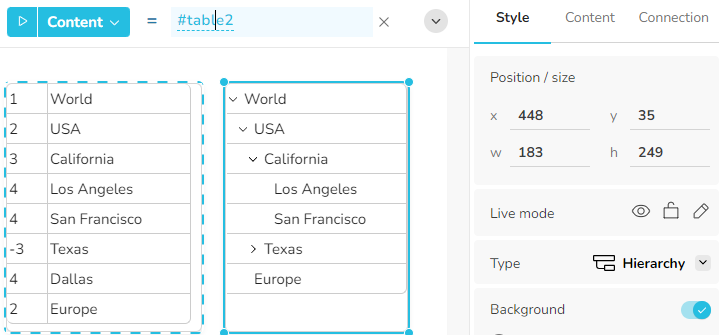
* **Hierarchy**\
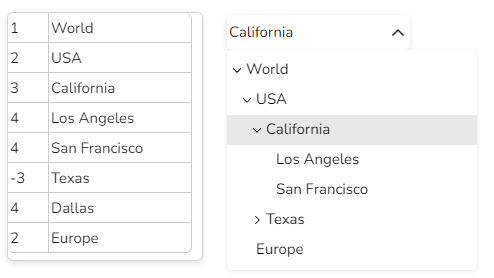
The widget is displayed in a hierarchical structure. To do this, it must contain the level in the first column and the display text in the second column.\
\
**Note**: If the level is negative, the corresponding row in the hierarchy is collapsed (see the following example, the row for *Texas* has a negative level, therefore *Texas* is collapsed)
#### Cell widget
Cell widgets display their content in a single cell. There are also subtypes here.
* **Cell**\
The content of the widget is displayed within the cell. Depending on the value type of the content, it is formatted accordingly, e.g. a number can be displayed with grouping or decimal places, and a date in the date format of the browser.
* **Password**\
The content of the widget is displayed masked. With the option to make the entered text visible and support for the browser's password manager.
* **QR code**\
The content of the widget is displayed as a QR code. A maximum of approx. 2,000 characters can be packed as a QR code.
#### Text widget
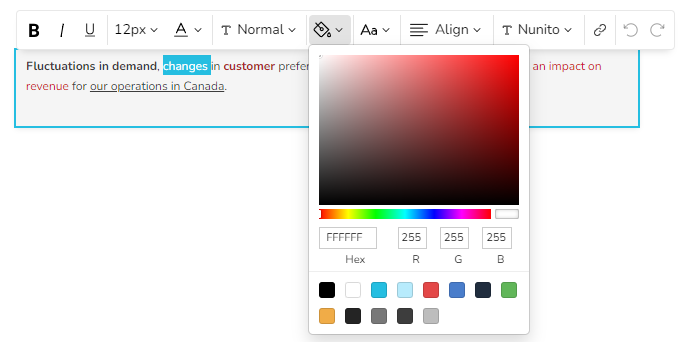
Text widgets offer the option of formatted text input and display. A toolbar is displayed after activating the widget.
#### Button widget
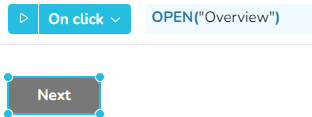
With a button widget, you can perform an action by clicking on it, e.g. navigating to another page or updating the information which is currently displayed in the page. The corresponding formula is stored in the *On click* action.
After clicking on the Next button, the Overview page opens
#### Menu widget
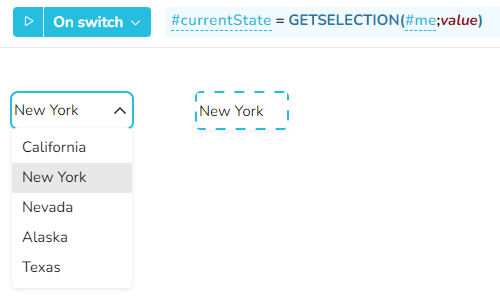
Menu widgets allow you to select an element from a list. The following two subtypes are offered:
* **Menu**\
The menu widget contains a flat list of elements.
* **Hierarchy menu**\
The hierarchy menu widget is filled with a hierarchical arrangement of elements. It is filled and displayed in the same way as described above for the Hierarchy table subtype.
#### Chart widget
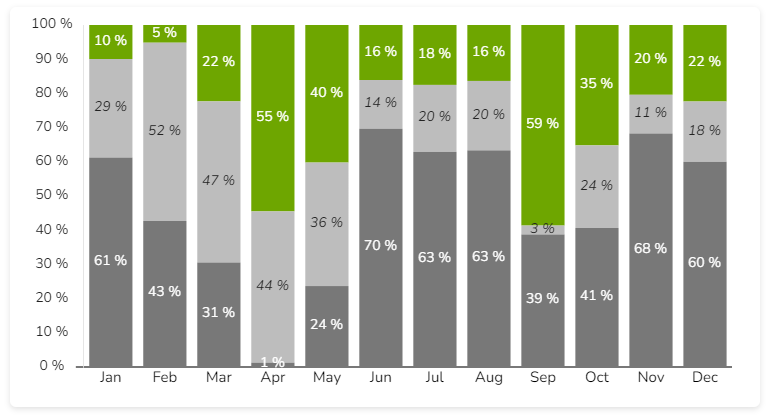
In chart widgets, the data is displayed in various chart options. Further information can be found in the [Chart content](/version-1.66/nedyx/working-with-nedyx/widgets/chart-content.md) section.
#### Image widget
Images can be displayed in image widgets. The following image formats are currently supported: jpeg, jpg, png, svg
.png?alt=media)
.png?alt=media)
.png?alt=media)