> For the complete documentation index, see [llms.txt](https://docs.nedyx.com/llms.txt). Markdown versions of documentation pages are available by appending `.md` to page URLs; this page is available as [Markdown](https://docs.nedyx.com/version-1.66/nedyx/getting-started/combine-several-tables.md).
# Combine several tables
Now it's time to create a first new widget.
1. Click on the **Add table widget** button in the widget toolbar, left to the page. \\

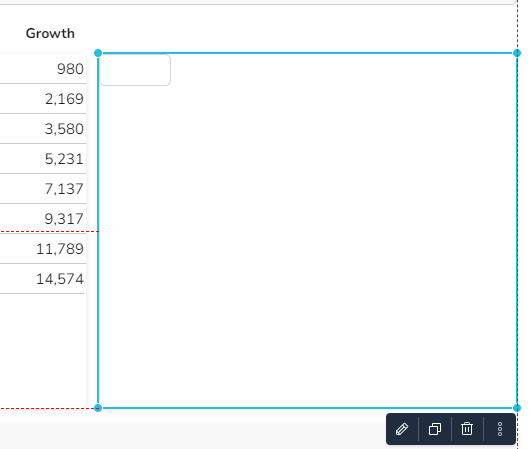
This adds a new table widget in the middle of the page. Now you can use your skills from other products like Microsoft PowerPoint or Google Present to position the table widget in the free area of the page.
2\. Reposition the widget by using the following options:
* Use the left mouse key to move the whole widget or resize the widgets border
* Use the arrow keys for more detailed adjustments
* Align it with other widget with using the red alignment lines
* Enter new values in the **Position / Size** fields in the **Styles** tab
**Note**: If you want to move all widgets within a page, type CTRL+a to select all widgets, and use the mouse or cursor keys to reposition them.
3\. To combine the content of the other table widgets, select the new widget and insert the formula:
**COMBINE**(#year; #contribution; #totalValue; #growth; *horizontal*)
4\. In the **Style** tab, select **Right alignment** 
**Note**: If you like, you can adjust the number format of the new table widget in the **Content** tab on the right, like for **Digits** or **Grouping**.