> For the complete documentation index, see [llms.txt](https://docs.nedyx.com/llms.txt). Markdown versions of documentation pages are available by appending `.md` to page URLs; this page is available as [Markdown](https://docs.nedyx.com/version-1.66/nedyx/clearlines-functions/import-export-functions/upload.md).
# UPLOAD
Uploads the content of a file from the local client computer into a widget.
#### Syntax
**UPLOAD**()
#### Remarks
* Calling this function uses the standard upload processing of the browser to store the file on the local computer.
* The function returns the content of the uploaded file as unformatted text.
* In case that any error occurs, !ERROR is returned.
* In the combination with CSVTORANGE, the UPLOAD function can be used to restore the content of any table widget from a file located on the client computer.
#### Examples
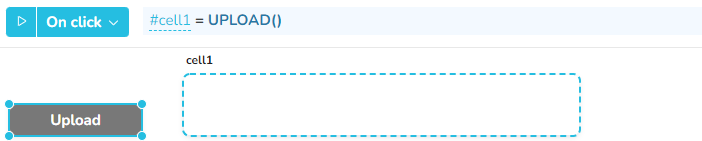
Clicking on the "Upload" button opens the "Open file" dialog in the browser. After the user has selected the file to upload, the text content is copied to cell1.
In combination with CSVTORANGE, the UPLOAD function can be used to fill the content of a table widget with the content of a csv file on the client computer. The formula of the "Upload" button is here analogue to the previous example: #cell2 = UPLOAD()