> For the complete documentation index, see [llms.txt](https://docs.nedyx.com/llms.txt). Markdown versions of documentation pages are available by appending `.md` to page URLs; this page is available as [Markdown](https://docs.nedyx.com/version-1.66/nedyx/clearlines-functions/import-export-functions/scancode.md).
# SCANCODE
Scans a QR or bar code and returns its content as a text.
#### Syntax
**SCANCODE**()
#### Remarks
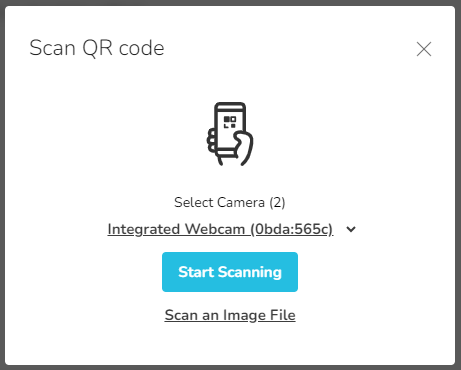
* When the function is called, a popup window is opened in the app. In the popup, the QR or bar code can either be uploaded, added as an image by drag\&drop, or scanned by using the device camera.
* After a successful scan, the function returns the content of the code as a text.
* For a list of all supported codes, please open this [link](https://github.com/mebjas/html5-qrcode?tab=readme-ov-file#supported-code-formats).
#### Example
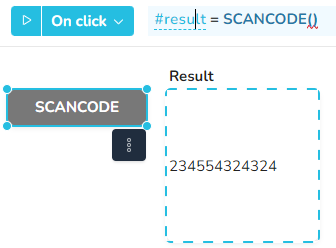
After a click on the SCANCODE button:
This popup window is opened:
After a successful scan, the Result widget above is filled with the scanned code.