> For the complete documentation index, see [llms.txt](https://docs.nedyx.com/llms.txt). Markdown versions of documentation pages are available by appending `.md` to page URLs; this page is available as [Markdown](https://docs.nedyx.com/version-1.66-de/erste-schritte/mehrere-tabellen-kombinieren.md).
# Mehrere Tabellen kombinieren
Nun ist es an der Zeit, ein erstes neues Widget zu erstellen.
1. Klicken Sie auf die Schaltfläche **Add table widget** in der Widget-Symbolleiste links neben der Seite.

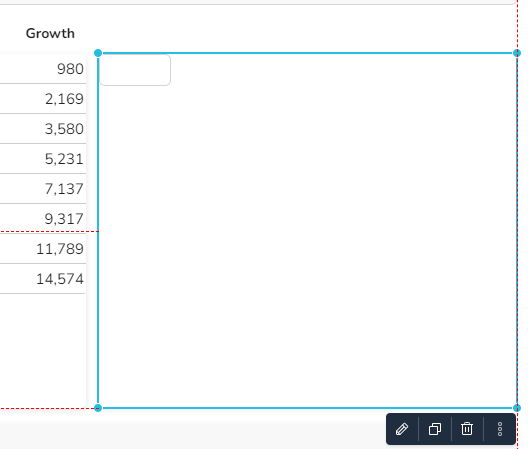
Dadurch wird ein neues Tabellen-Widget in der Mitte der Seite hinzugefügt. Nun können Sie Ihre Kenntnisse aus anderen Produkten wie Microsoft PowerPoint oder Google Present nutzen, um das Tabellen-Widget im freien Bereich der Seite zu positionieren.
2\. Positionieren Sie das Widget mit Hilfe der folgenden Optionen neu:
* Verwenden Sie die linke Maustaste, um das gesamte Widget zu verschieben oder die Größe des Randes des Widgets zu ändern.
* Verwenden Sie die Pfeiltasten für detailliertere Anpassungen
* Richten Sie das Widget an anderen Widgets mit Hilfe der roten Ausrichtungslinien aus.
* Geben Sie neue Werte in die Felder **Position / Size** im **Style**-Tab ein.
**Hinweis**: Wenn Sie alle Widgets innerhalb einer Seite verschieben möchten, geben Sie STRG+a ein, um alle Widgets auszuwählen, und verwenden Sie die Maus oder die Cursortasten, um sie neu zu positionieren.
3\. Um den Inhalt der anderen Tabellen-Widgets zu kombinieren, wählen Sie das neue Widget aus und fügen Sie die Formel ein:
**COMBINE**(#year; #contribution; #totalValue; #growth; *horizontal*)
4\. Wählen Sie auf dem Style-Tab die Option **Right alignment** 
**Hinweis**: Wenn Sie möchten, können Sie das Zahlenformat des neuen Tabellen-Widgets im **Content**-Tab auf der rechten Seite anpassen, z. B. für Ziffern (**Digits**) oder Gruppierung (**Group**).