> For the complete documentation index, see [llms.txt](https://docs.nedyx.com/llms.txt). Markdown versions of documentation pages are available by appending `.md` to page URLs; this page is available as [Markdown](https://docs.nedyx.com/version-1.52-preview/working-with-nedyx/widgets.md).
# Widgets
The visual elements of a page are called Widgets. There are different widget types and sub-types:
* Table widget
* Column
* Row
* Hierarchy
* Cell widget
* Password
* QR code
* Text widget
* Button widget
* Menu widget
* Hierarchy menu
* Chart widget
* Image widget
Widgets are added to a page via the widget toolbar.
A single click places a new widget of the selected type into the middle of the current page. Alternatively, a widget can be dragged to a position on the page by drag\&drop on the widget icon.
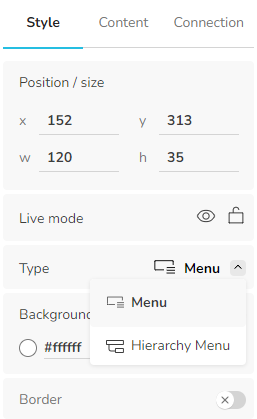
The sub-types "Hierarchy" (for table widgets) and "Hierarchy menu" (for menu widgets) can be selected in the Styles tab: