> For the complete documentation index, see [llms.txt](https://docs.nedyx.com/llms.txt). Markdown versions of documentation pages are available by appending `.md` to page URLs; this page is available as [Markdown](https://docs.nedyx.com/version-1.52-preview/working-with-nedyx/pages.md).
# Pages
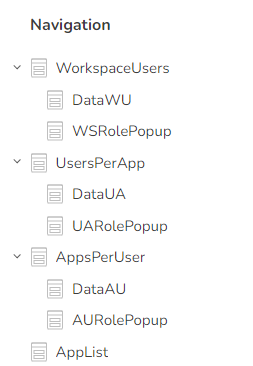
nedyx apps consist of pages. The list of pages is displayed in the **Navigation** tab.
It is possible to order the pages in a hierarchical structure. This can be done in Edit mode, either by drag & drop the pages into the new position, or by using the three dots menu right beside the pages.
### Page styles
#### 
#### Page size
Defines the width and height of the page. Pages can never be smaller than the area occupied by the including widgets.
#### Visible in navigation
If switched on, the page is visible in the navigation tab in Live mode.
*Please note*
* In Edit mode, all pages are always visible.
* With the OPEN function, it is possible to open all pages, regardless of whether they have the property "Visible in navigation" turned on or not.
* Pages can only be opened by their url if they have the property "Visible in navigation" switched on.
#### Display name
The name that is displayed for the page in live mode.
#### Background
The background color which is displayed for the page.
#### Border
The border which is displayed around the page.
### Page management
#### Add page 
This adds a new page into the Navigation list, right behind the currently selected page.
#### Rename page
A page can be renamed by double-click on its name in the **Navigation** tab, or by a single click into the name field (if no widget is selected on the page).
 A third option is to use the "Rename" entry in the Three dots menu of a page in the **Navigation** tab.

#### Duplicate page
Creates a complete duplicate of the page.
#### Delete page
Deletes the page. You can delete a page as well with the DEL key.
#### Change page order
The order of pages can be changed by using drag & drop. If a page should be inserted as a child of a page, drag the page over its parent so that a rectangle appears before dropping it.
#### Copying pages
Complete pages including all subpages can be copied within the same app and also from one app to another app. This is done as follows:
1. Click on the page to be copied in the navigation tab.
2. Press CTRL+c to copy the page (including all subpages) to the clipboard.
3. Click on the page (in the same or another app) after which the copied pages are to be pasted.
4. Press CTRL+v to paste the page(s) from the clipboard behind the page.
#### Remarks
* Pages can only be pasted at the top level of the navigation tree. You can then simply drag and drop the page(s) to another level.
* All widget references within the copied pages are retained.
A third option is to use the "Rename" entry in the Three dots menu of a page in the **Navigation** tab.

#### Duplicate page
Creates a complete duplicate of the page.
#### Delete page
Deletes the page. You can delete a page as well with the DEL key.
#### Change page order
The order of pages can be changed by using drag & drop. If a page should be inserted as a child of a page, drag the page over its parent so that a rectangle appears before dropping it.
#### Copying pages
Complete pages including all subpages can be copied within the same app and also from one app to another app. This is done as follows:
1. Click on the page to be copied in the navigation tab.
2. Press CTRL+c to copy the page (including all subpages) to the clipboard.
3. Click on the page (in the same or another app) after which the copied pages are to be pasted.
4. Press CTRL+v to paste the page(s) from the clipboard behind the page.
#### Remarks
* Pages can only be pasted at the top level of the navigation tree. You can then simply drag and drop the page(s) to another level.
* All widget references within the copied pages are retained.