> For the complete documentation index, see [llms.txt](https://docs.nedyx.com/llms.txt). Markdown versions of documentation pages are available by appending `.md` to page URLs; this page is available as [Markdown](https://docs.nedyx.com/version-1.52-preview/getting-started/the-first-formula.md).
# The first formula
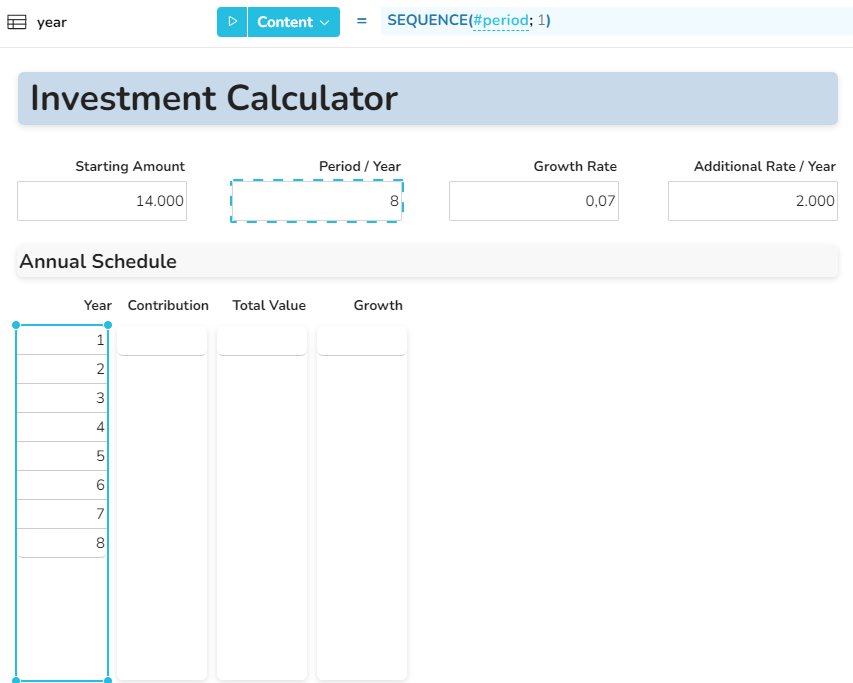
1. Click on the widget below the text *Year*.
**Note**: Every widget has a name, which is unique per page. You can see in the field left above the page area that the currently selected widget is named *year*.
We will now assign a formula to this widget that will display all years, from 1 to the number of years which are defined in the widget below *Period / Years*.
2\. Click with the mouse into the formula editor. You find this editor above the page, right beside **Content**.
3\. Now enter this formula into the formula editor: \
**SEQUENCE**(#period; 1) \
and type on the *Return* key afterwards. The *year* widget is now filled with the numbers from 1 to 8.
**Note 1**: You might recognize the autocomplete window during typing content into the formula window. The suggested entries can be inserted by typing the *Return* or *Tab* key.
**Note 2**: The function **SEQUENCE**(#period; 1) returns all integer numbers from 1 to the defined parameter in one column. If you want to learn more about the **SEQUENCE** function, you find a description of all nedyx functions in the navigation on the left under [ClearLines Functions](/version-1.52-preview/clearlines-functions.md), or click directly on this link: [SEQUENCE](/version-1.52-preview/clearlines-functions/range-functions/sequence.md).
**Note 3**: There is an easy syntax used to access the content of widgets: a hash followed by the name of the widget. So #period returns the current content of the widget *period*, in this case the number 8.
4\. In the formula window, click on any letter of the widget reference #period.
Now you see that the according widget *period* is identified with a blue dotted, marching border. This is helpful to easily read and understand a nedyx formula.
5\. With the *CTRL* key pressed, click on the widget below *Additional Rate / Year* (containing the value 2,000). Type on the *Return* key.
This is another very helpful way to insert or exchange widget references in a formula. Now the *year* widget contains all numbers from 1 to 2,000. Of course that was just for fun, and we have to revert it now.
6\. Repeat steps 4 and 5 to again insert #period into the formula.
Note 4: You can also undo changes using the **Undo** / **Redo** buttons in the header or by pressing CTRL+z / CTRL+y.
In the next step, we fill the other table widgets with formula content.