> For the complete documentation index, see [llms.txt](https://docs.nedyx.com/llms.txt). Markdown versions of documentation pages are available by appending `.md` to page URLs; this page is available as [Markdown](https://docs.nedyx.com/version-1.52-preview/getting-started/more-formulas.md).
# More formulas
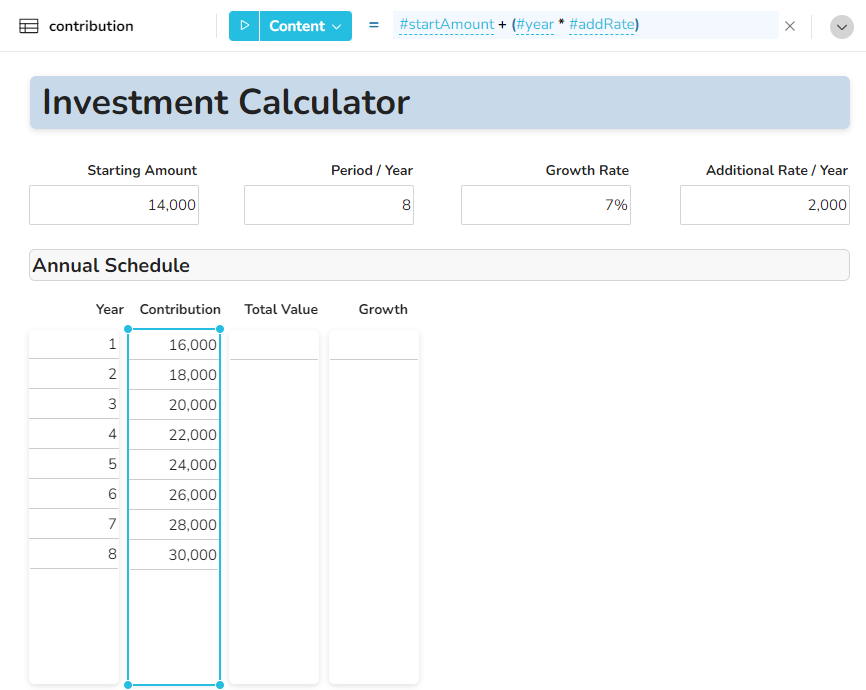
1. Click on the widget below *Contribution*, and enter this formula, either manually or by copy & paste:
#startAmount + (#year \* #addRate)
2. Type the *Return* key or just click outside of the formula editor afterwards. You see now the total contribution you willl add to the investment over the years.
3. Click on the widget below *Total Value*, and enter this formula:
#startAmount \* ((1+#growthRate)^#year)+#addRate\*((1+#growthRate)^#year-1)/#growthRate
4. Type the *Return* key or just click outside of the formula editor afterwards. You see now the total value of the investment over the years.
**Note**: This is a more complicated financial function (called "NVP formula"), using all available arithmetical functions in nedyx, including the exponential operator "^".
5. Click on the widget below *Growth*, and enter this formula, either manually or by copy & paste:
#totalValue - #contribution
Now all calculation formulas are defined. You can check the result by changing the values in the four cell widgets. The content of the table widgets adjusts automatically.