> For the complete documentation index, see [llms.txt](https://docs.nedyx.com/llms.txt). Markdown versions of documentation pages are available by appending `.md` to page URLs; this page is available as [Markdown](https://docs.nedyx.com/version-1.52-preview/clearlines-functions/general-aspects/widget-cell-references.md).
# Widget cell references
As an extension to widget references, widget cell references are used in formula to retrieve the content of certain widget cells.
**Syntax**: #pageName.widgetName!A1:B2
with
* #pageName.widgetName - Reference of the widget (see previous chapter)
* A1 - starting cell of the cell range, with
* A: column 1, B: column 2, ...
* 1: row 1, 2: row 2, ...
* B2 - ending cell of the cell range
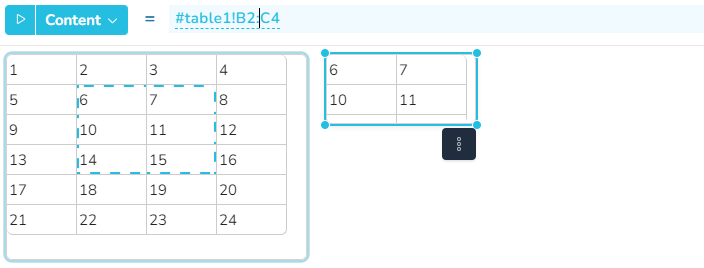
**Selecting cell references in the formula editor**
While holding down the CTRL key, either a reference to a widget or to cells of a table widget can be inserted into the formula editor:
#### Remarks
* Single cells can be referenced by a single click on an already selected widget reference (identified by a dotted frame).
* Multiple cells can be referenced by drag & drop across multiple cells.
* After clicking on a widget reference in the formula editor, the corresponding widget or widget cell(s) is marked by a dotted marching frame.
**Examples**
* #table1!B3 - returns the cell content of column 2 and row 3, of the widget with name table1
* #table1!E - returns the content of the whole column 5
* #table1!3 - returns the content of the whole row 3
* #table1!B3:D5 - returns the cell range between column 2, row 3 and column 4, row 5.
* #H5 - returns the content of column 8, row 5 of the widget that executes the current formula.
* #me!H5 - returns the same as the previous example